Working from home offers plenty of advantages, from eliminating the daily commute to creating a workspace that fits your personal needs. However, most home offices contain several electronic devices operating throughout the day. Computers, Wi-Fi routers, smartphones, monitors, charging cables, and wireless accessories all produce some form of electromagnetic field (EMF). If you spend eight or more hours at your desk, you may wonder whether there are simple ways to reduce unnecessary exposure. Fortunately, improving your home office EMF setup does not require expensive equipment or major renovations. A few thoughtful changes to your workspace can reduce certain exposures while making your office more organized, comfortable, and efficient.
It is important to understand that electromagnetic fields are a normal part of modern life. They occur naturally and are also produced by electrical equipment and wireless technology. According to major public health organizations, typical low-level EMF exposure from properly functioning household electronics has not been established as a cause of adverse health effects when exposures remain within applicable guidelines.
Still, some people prefer to minimize unnecessary exposure as a precaution. Others simply want to better understand the technology surrounding them. Whatever your motivation, the most useful approach is to focus on practical changes that can be measured or reasonably explained rather than relying on expensive products with questionable claims.
This guide explains where electromagnetic fields originate in a typical home office and provides 10 realistic ways to reduce unnecessary exposure without sacrificing convenience or productivity.
Understanding EMF Sources in a Home Office
Before making changes to your workspace, it helps to understand what electromagnetic fields actually are. Not all EMF comes from the same source, and different types of fields behave differently.
Most home offices contain equipment that produces radiofrequency electromagnetic fields, low-frequency electric fields, and low-frequency magnetic fields.
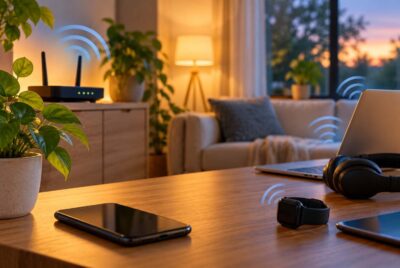
Radiofrequency EMF comes primarily from wireless communication devices. Your Wi-Fi router, smartphone, Bluetooth keyboard, wireless mouse, and Bluetooth headset use radiofrequency signals to transmit information. The strength of these signals varies depending on the device, its operating conditions, and the distance between the source and the person receiving the exposure.
Low-frequency electric fields are associated with electrical voltage. Power cords, outlets, computer equipment, and other devices connected to household electricity can produce these fields. Electric field strength depends on factors such as voltage, distance, and the presence of surrounding materials.
Low-frequency magnetic fields are produced when electrical current flows. Power adapters, electrical wiring, computer equipment, and motors may generate localized magnetic fields. Their strength varies with current and equipment design, and generally decreases as you move away from the source.
These distinctions matter because an EMF meter designed to measure one type of field may not accurately measure another.
It is also worth separating the idea of exposure from the idea of danger. Detecting an electromagnetic field does not automatically mean that the exposure is harmful. EMF levels need to be interpreted according to their frequency, strength, duration, and the relevant scientific exposure guidelines.
With that understanding, you can make informed decisions about which changes are worthwhile in your home office.
1. Move Your Wi-Fi Router Away From Your Desk
One of the easiest changes you can make involves the placement of your Wi-Fi router.
Many people keep their router directly beside their computer because it is convenient, especially when their internet connection enters the house near their workspace. Others place the router underneath their desk or on a shelf immediately beside their chair.
Although Wi-Fi equipment normally operates at low power levels, moving the router farther away can reduce the radiofrequency exposure associated with being close to it.
Distance is particularly useful because radiofrequency field strength generally decreases as you move away from the transmitting antenna. The exact reduction depends on the antenna design, surrounding surfaces, and indoor environment.
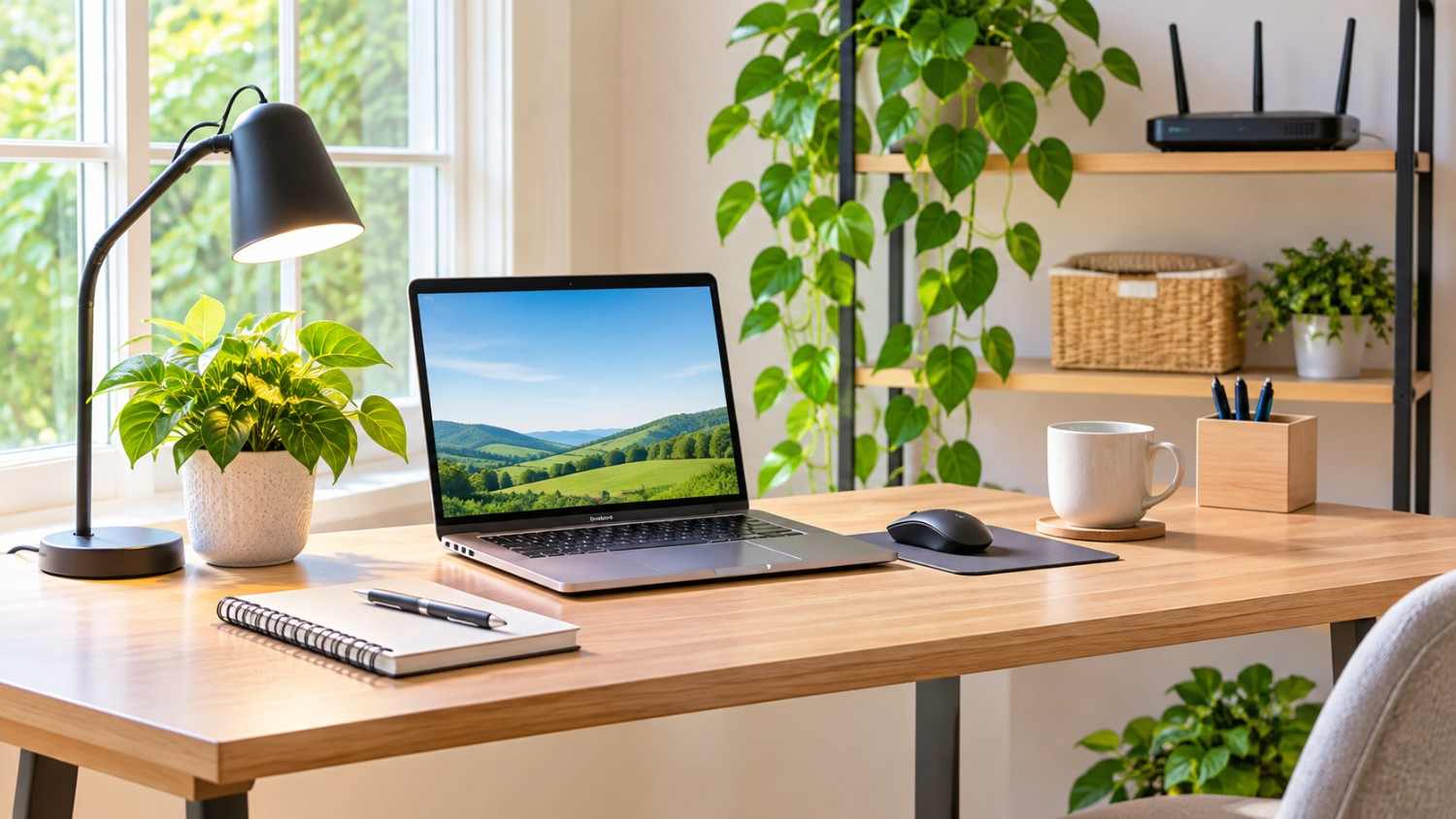
For example, if your router currently sits just a few inches from your keyboard, consider moving it to a bookshelf or another suitable location across the room. You may be able to maintain excellent internet performance while increasing the distance between yourself and the router.
However, there is no scientifically established minimum separation distance that everyone must maintain from a compliant household Wi-Fi router to prevent health problems.
Router placement should also account for internet performance. Placing a router behind thick walls, inside metal cabinets, or in poorly ventilated areas can reduce connectivity and create unnecessary technical problems.
A central, elevated, well-ventilated location often works well for wireless coverage.
If your router is already several feet from your usual seating position, there may be little practical reason to rearrange your entire office.
2. Use a Wired Ethernet Connection When Practical
Wireless internet is convenient, but it is not always necessary for a computer that stays in the same location every day.
If you use a desktop computer or a laptop connected to a docking station, switching to a wired Ethernet connection may be an easy way to reduce unnecessary wireless transmissions from that computer.
Ethernet sends information through a physical cable rather than relying on a Wi-Fi radio connection. It can also offer practical benefits, including connection stability, predictable performance, and fewer interruptions during video meetings.
For someone who spends much of the workday on video calls, transferring files, or accessing remote systems, these advantages may be just as valuable as reducing wireless activity.
To make the switch, connect an Ethernet cable between your computer and router or a compatible network switch. Some laptops require a USB-to-Ethernet adapter because they do not have a built-in Ethernet port.
Once the wired connection is working, you can disable Wi-Fi on your computer if you no longer need it.
This final step is important. Simply connecting an Ethernet cable does not necessarily turn off the computer’s wireless radio.
A wired connection does not eliminate all electromagnetic fields from your computer. Electrical components and power supplies continue operating, and Ethernet equipment can produce low-frequency electromagnetic fields.
However, it can eliminate the need for Wi-Fi communication from the connected computer.
For a stationary home office, this is one of the simplest technology changes worth considering.
3. Keep Your Laptop on a Desk Instead of Your Lap
Laptops are designed for portability, but using one directly on your lap for several hours may not be the most comfortable arrangement.
A laptop contains multiple electrical components, including processors, power-management circuits, a battery, and sometimes active wireless transmitters. These components produce electromagnetic fields during normal operation.
Placing the laptop on a desk or stand increases the distance between these components and your body.
Although typical laptop EMF exposure has not been established as a health hazard, increasing separation is a straightforward way to reduce exposure to some localized fields.
There are also more immediate reasons to avoid extended laptop use directly on your legs.
Laptops can generate considerable heat, particularly when running demanding software, charging the battery, or operating with restricted ventilation. Prolonged contact with warm equipment can cause discomfort and, in some circumstances, heat-related skin changes.
A raised laptop stand can improve airflow while positioning the screen at a more comfortable viewing height.
For longer work sessions, consider using an external keyboard and mouse so you can maintain a relaxed posture without reaching toward an elevated laptop.
The goal is not to avoid using your computer. It is to arrange your equipment so that you can work comfortably without keeping unnecessary electronic components pressed against your body.
4. Consider Wired Keyboards, Mice, and Headsets
Wireless accessories have become standard in many home offices. Bluetooth keyboards, wireless mice, and headsets eliminate cable clutter and make desks easier to organize.
However, these devices also use radiofrequency signals to communicate.
If your goal is to reduce the number of active wireless transmitters around your workspace, replacing selected accessories with wired versions is an option.
A wired keyboard communicates through a physical cable rather than Bluetooth. The same applies to a traditional USB mouse.
A wired headset can also replace the need for a Bluetooth audio connection during meetings and telephone calls.
It is important to keep the actual exposure levels in perspective. Bluetooth devices generally operate at relatively low transmitting powers, and their typical exposures have not been established as harmful.
Switching to wired accessories should therefore be viewed as a personal preference rather than a medical necessity.
There are also practical considerations. Wired accessories can create additional cable clutter, and some people find wireless devices more convenient for maintaining a comfortable workspace.
If you already own a reliable wireless keyboard and mouse, replacing them solely because they use Bluetooth may provide little meaningful benefit.
A more balanced approach is to make changes when an accessory needs replacement or when a wired version offers another advantage.
For example, a wired headset may be useful if you frequently experience Bluetooth connection problems during important meetings.
The best choice is the one that supports your work while meeting your personal preferences.
5. Keep Your Smartphone Away From Your Body While Working
Your smartphone may be one of the most frequently used wireless devices in your home office.
Even when you are not actively making calls, it may communicate with cellular networks, Wi-Fi equipment, and Bluetooth accessories.
The amount of radiofrequency energy transmitted varies considerably depending on the activity, signal quality, network technology, and device settings.
For example, a phone may transmit differently while downloading a large file, making a voice call, or sitting idle on a desk.
If you normally keep your phone in your pants pocket throughout the workday, consider placing it on your desk or a nearby shelf instead.
This increases the separation between the phone and your body without affecting your ability to receive calls or messages.
During longer telephone conversations, using speakerphone or a wired headset can also increase the distance between the phone’s antenna and your head.
Another consideration is signal strength. A phone operating in an area with poor cellular reception may increase its transmitting power to maintain communication with the network.
For that reason, placing a phone in a metal drawer or another location that significantly blocks its signal is not necessarily a useful exposure-reduction strategy.
If you do not need wireless connectivity for a period of time, airplane mode can disable cellular transmissions, although you should verify whether Wi-Fi and Bluetooth remain enabled on your particular device.
These changes are optional and should not interfere with your ability to receive important communications.
6. Organize Power Strips, Adapters, and Charging Cables
A typical home office may contain more electrical equipment than you realize.
Behind your desk, you might have a power strip connected to a computer, two monitors, a printer, a desk lamp, and several charging adapters.
Each electrical device has its own operating characteristics, and some components can produce localized electric or magnetic fields.
Power adapters and transformers are particularly useful examples because their electrical components may produce measurable low-frequency magnetic fields nearby.
If a large power adapter sits directly beside your leg or rests against your chair, moving it farther away may reduce your exposure to its localized field.
You do not need to move every power cord to the opposite side of the room. Instead, focus on practical organization.
For example, power strips can often be mounted securely beneath or behind a desk, away from areas where your feet and legs normally rest.
Charging adapters can be positioned where they have adequate ventilation and are unlikely to be covered by papers, carpeting, or fabric.
Avoid tightly bundling cords in ways that trap heat, and never overload a power strip or connect multiple power strips in a chain.
Cable management is primarily an organizational and electrical safety improvement. It does not automatically produce a meaningful EMF reduction.
Nevertheless, thoughtful placement of power supplies and other electrical components can reduce close contact with localized sources while improving the appearance and usability of your workspace.
7. Position Computer Towers, Monitors, and Other Electronics Thoughtfully
Your computer may not be the only significant piece of equipment in your office.
Many workspaces also contain external monitors, docking stations, desktop towers, printers, speakers, and backup power supplies.
These devices produce electromagnetic fields as part of normal electrical operation.
The levels vary considerably by device type and design, and modern equipment generally produces low exposures at ordinary working distances.
Still, equipment placement can influence how close you remain to particular sources throughout the day.
For example, if your desktop tower sits directly against your leg underneath your desk, you may prefer to move it to a nearby stand where it has sufficient ventilation.
A printer that is used only occasionally does not necessarily need to occupy valuable space immediately beside your keyboard.
Similarly, bulky power supplies and docking stations can often be positioned toward the rear of the desk rather than directly against your body.
Monitor placement deserves special attention because screen distance has important ergonomic implications.
Your monitor should be positioned at a comfortable viewing distance, with the screen height adjusted to reduce unnecessary neck strain.
Do not move a monitor so far away that you struggle to read text simply to increase EMF separation.
A comfortable, functional workspace is more valuable than attempting to maximize the distance from every electronic component.
The objective is to avoid unnecessary close contact with equipment while maintaining good ergonomics and reliable performance.
8. Turn Off Wireless and Electrical Devices You Are Not Using
One of the simplest ways to reduce unnecessary electrical activity in a home office is to turn off equipment that is not needed.
Many electronic devices continue consuming electricity while in standby mode. Some also maintain wireless connections or periodically transmit information.
For example, a wireless printer may remain connected to your Wi-Fi network throughout the day even if you print only once or twice a week.
Smart speakers, tablets, secondary computers, and other connected devices may also remain active when nobody is using them.
Turning these devices off when they are unnecessary can reduce their operating time, electricity consumption, and associated electromagnetic emissions.
However, the amount of exposure reduced depends on the device and whether it was transmitting or producing a measurable field in the first place.
It is also important to understand the difference between sleep mode and a complete shutdown.
A sleeping computer may continue performing certain background functions, while a fully powered-down computer generally consumes less energy and produces fewer operating emissions.
Some equipment, including routers and network devices, may need to remain on for household connectivity, security systems, or other important functions.
There is no reason to interrupt essential services solely to reduce ordinary household EMF exposure.
Instead, review your workspace periodically and identify electronics that remain powered on without serving a useful purpose.
This habit can reduce wasted electricity, limit unnecessary device activity, and simplify your office.
9. Measure EMF Levels Before Purchasing Expensive Solutions
If you are particularly interested in understanding the electromagnetic environment around your workspace, an EMF meter may provide useful information.
However, choosing the correct instrument is important.
Different meters measure different types of electromagnetic fields. A meter designed for low-frequency magnetic fields may not be suitable for measuring Wi-Fi signals, while a radiofrequency meter may not measure the magnetic fields produced by electrical power adapters.
Some combination meters include multiple measurement functions, but their accuracy, frequency coverage, and sensitivity vary.
Before purchasing a meter, determine what you actually want to measure.
For example, if you are interested in the radiofrequency signals produced by your router, you need an instrument capable of measuring the relevant Wi-Fi frequency bands.
If you want to investigate localized magnetic fields around a power adapter, you need a meter designed for low-frequency magnetic field measurements.
It is also important to recognize the limitations of consumer instruments.
Measurements can change with distance, device activity, surrounding equipment, and the orientation of the meter.
A single reading does not necessarily represent your average exposure throughout the workday.
Some meters also respond to signals outside their intended measurement range or produce misleading readings when used incorrectly.
A practical approach is to compare readings before and after a specific change while keeping the measurement location and operating conditions as consistent as possible.
For example, you might measure a localized field near a power adapter and then repeat the measurement after moving the adapter.
This can help you determine whether the change reduced the measured field at that location.
However, an EMF meter cannot diagnose a health problem, establish whether a particular exposure caused symptoms, or determine whether an environment is medically safe based on a single number.
For readers who enjoy technical measurements, a suitable meter can be an educational tool. For most home-office users, purchasing one is not necessary.
10. Create a Practical Low-Exposure Home Office Layout
The final recommendation brings everything together.
Rather than purchasing multiple accessories or completely redesigning your workspace, focus on arranging the equipment you already own.
A practical home office EMF setup should prioritize comfort, productivity, electrical safety, and reasonable equipment placement.
Start with your desk and chair. Position your computer screen at a comfortable viewing distance and arrange your keyboard and mouse so your arms remain relaxed.
If you use a laptop, consider a stand and external input devices for longer work sessions.
Next, look at your router. If it is positioned directly beside your chair, determine whether another location would maintain reliable wireless coverage while increasing separation.
If your computer stays in one location, consider whether Ethernet would be more convenient than Wi-Fi.
Review the area beneath your desk and relocate bulky adapters or unnecessary electrical equipment that rests against your legs.
Place printers and other occasionally used devices in accessible locations rather than keeping everything crowded around your immediate seating area.
Finally, identify wireless connections and electronic devices you do not need running continuously.
None of these changes requires you to eliminate modern technology from your office.
In fact, many improvements can make your workspace more organized and enjoyable.
A well-designed home office should support your daily routine, not create unnecessary inconvenience or anxiety.
The most effective arrangement is usually one that reduces avoidable close contact with equipment while preserving the benefits of the technology you rely on.
Affiliate Advertisement

Do You Need Special EMF Protection Products in Your Home Office?
Once you begin researching electromagnetic fields, you will probably encounter advertisements for EMF-blocking stickers, shielding fabrics, protective pendants, specialized laptop accessories, and other products claiming to reduce radiation exposure.
Some products use materials that can attenuate certain electromagnetic fields under specific conditions. However, that does not mean every advertised product performs as claimed.
Shielding effectiveness depends on the type of electromagnetic field, its frequency, the material used, and how the shielding is installed.
For example, a material that reduces radiofrequency transmission may not provide meaningful protection against low-frequency magnetic fields.
Poorly designed shielding can also interfere with wireless communication. In some circumstances, a phone experiencing reduced signal quality may increase its transmitting power to maintain a connection.
Claims that stickers, jewelry, or small accessories can neutralize electromagnetic radiation without affecting device operation deserve particular scrutiny.
There is no convincing scientific evidence that such products provide meaningful health benefits during ordinary home-office use.
Before buying anything, ask whether the product addresses a specific, measurable problem.
For most people, practical adjustments such as moving equipment, using Ethernet, and switching off unused devices are more reasonable starting points.
Specialized products should not replace established electrical safety practices, proper ergonomics, or evidence-based medical advice.
Frequently Asked Questions About Home Office EMF
Does a Computer Monitor Emit EMF?
Yes. Computer monitors contain electrical components that produce electromagnetic fields during normal operation.
Modern LCD and LED monitors generally produce low levels of electromagnetic fields at typical viewing distances. Their emissions differ from those associated with older cathode-ray tube monitors.
For most people, there is no established health reason to avoid using a modern monitor at a comfortable viewing distance.
Proper screen positioning, regular breaks, and reducing eye strain are generally more useful concerns.
Is Ethernet Better Than Wi-Fi for Reducing EMF Exposure?
Ethernet can reduce radiofrequency emissions from a computer by replacing its Wi-Fi connection, provided the computer’s Wi-Fi radio is disabled.
However, Ethernet does not eliminate electromagnetic fields from the computer, monitor, or other electrical equipment.
It is also important to remember that ordinary Wi-Fi exposure has not been established as harmful when it remains within applicable exposure guidelines.
For a stationary computer, Ethernet may be worthwhile for both connection reliability and reducing unnecessary wireless transmissions.
Can an EMF Meter Identify the Biggest Sources in My Office?
An appropriately selected meter may help identify equipment producing measurable fields within the instrument’s operating range.
However, not every meter measures every type of EMF.
Radiofrequency fields, low-frequency electric fields, and low-frequency magnetic fields require suitable measurement capabilities.
Readings also need to be interpreted carefully because field strength alone does not establish a health risk.
Do I Need EMF Shielding Products for My Home Office?
Most people do not need specialized EMF shielding products for a typical home office.
Ordinary household electronics are generally designed to operate within applicable safety requirements, and public health authorities have not established adverse health effects from typical low-level exposures within recommended limits.
If you want to reduce unnecessary exposure, begin with simple equipment placement and operating changes rather than purchasing expensive shielding products.
Conclusion: Creating a More Thoughtful Home Office
A comfortable and productive home office does not require eliminating Wi-Fi, replacing every wireless accessory, or surrounding your equipment with expensive shielding materials.
Instead, reducing unnecessary exposure begins with understanding how your devices operate and making practical adjustments where they make sense.
Moving a router away from your immediate seating area, using Ethernet when convenient, positioning laptops on desks, organizing power supplies, and turning off unused electronics can reduce certain electromagnetic field exposures while offering additional benefits.
These changes should be kept in perspective. Typical low-level EMF exposure from household electronics has not been established as harmful when it remains within applicable guidelines, and reducing exposure further has not been shown to provide additional health benefits.
The goal of improving your home office EMF arrangement is to make informed choices, not to create fear about everyday technology.
By focusing on reasonable changes, reliable information, and a comfortable workspace, you can enjoy the convenience of working from home without unnecessary expense or worry.
Before You Go…
Get Weekly EMF Protection Tips
Enjoy this article? Join the EMFLuLu newsletter for simple weekly tips to reduce everyday EMF exposure from phones, WiFi routers, laptops, and smart home devices.
Try Our Free EMF Calculators
Curious how much EMF exposure you may experience each day?
These simple tools can help you estimate your exposure and identify possible problem areas in your home.
Try these free calculators:
Like this article? Pin it on Pinterest!


More to Explore